
Account & Billing
Last updated: February 2026
How to manage your subscription, payments, invoices, cancellations, and password access.
Table of contents
Manage your subscription
UpSnatch subscriptions are managed via Stripe. In UpSnatch, you can view your plan details and open the Stripe customer portal to make changes.
Where to find your subscription details
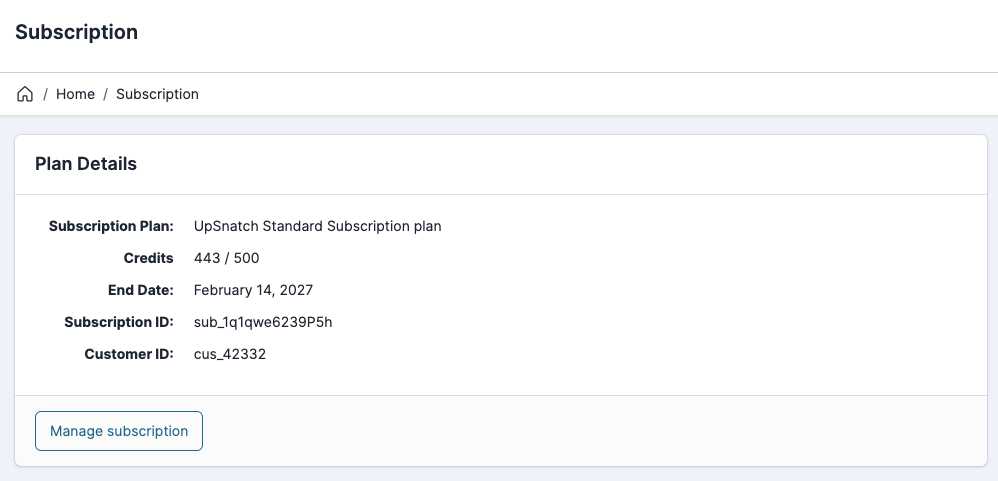
Go to Home → Subscription.
Under Plan Details, you can see:
Subscription Plan
Credits
End Date
Subscription ID (starts with
sub_...)Customer ID (starts with
cus_...)
Click Manage subscription to open the Stripe customer portal.
What you do in the Stripe portal
In the Stripe portal, you can:
View your current plan
Cancel your subscription
Update your payment method
Download invoices and receipts
Credits
Your plan includes 500 credits every month. Each search uses 1 credit.
Credits are a measure to prevent abuse and keep the service fast for everyone.
For normal usage in a single account, 500 credits is more than enough. Each search uses 1 credit. Credits are updated live, and you can always see your current balance on the Subscription page.
If you run into the limit or need more credits, you can always contact us at [email protected].
Update payment method
Update your payment method in the Stripe customer portal.
Go to Home → Subscription.
Click Manage subscription.
In Stripe, open Payment method (or Billing details).
Add a new card or replace your existing card.
Save your changes.
Note
Prices and billing status can update quickly and changes may not always show instantly in UpSnatch. If something looks off, confirm it in the Stripe portal.
Invoices & receipts
Download invoices and receipts from the Stripe portal.
Go to Home → Subscription.
Click Manage subscription.
In Stripe, open Invoices (or Billing history).
Download the invoice/receipt you need.
If you can't find an invoice:
Make sure you're logged in with the same email address that has the subscription.
Email support and include your Subscription ID (
sub_...) or Customer ID (cus_...).
Cancel subscription
Cancel your subscription from the Stripe portal.
Go to Home → Subscription.
Click Manage subscription.
In Stripe, click Cancel plan (wording may vary).
Confirm the cancellation.
After you cancel:
Your subscription stays active until the end of the current billing period (shown as End Date).
After the end date, your plan access and/or usage limits change based on your subscription status.
Billing troubleshooting
Payment failed / card declined
Go to Home → Subscription → Manage subscription.
Update your payment method in Stripe.
Try again with another card if the payment still fails.
Subscription status looks wrong in UpSnatch
Billing changes may not appear instantly in UpSnatch.
Open Manage subscription and confirm the status in Stripe.
Refresh the UpSnatch Subscription page after a few minutes.
Charged, but can't access your account
Log in with the same email address used for the subscription.
Reset your password if needed (see Password reset).
If the issue continues, email support and include your Subscription ID or Customer ID.
Can't find invoices/receipts
Open Manage subscription → Invoices in Stripe.
If you used a different email address, log in with that account instead.
If you still can't find them, email support and include your Subscription ID or Customer ID.
Password reset
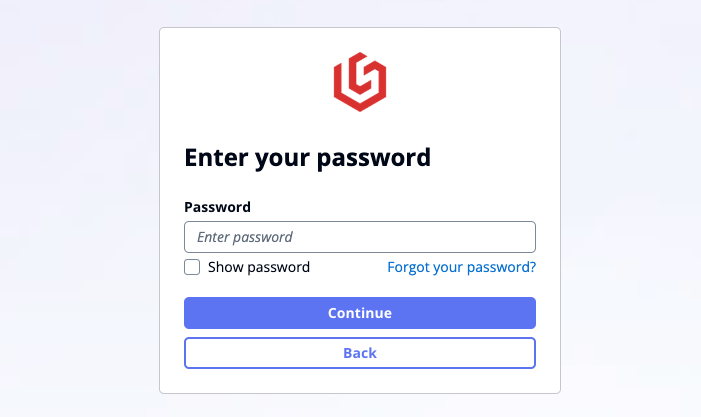
If you want to reset your password, you can do so from the login screen.
Important
Make sure to use the same email address you used when you originally created your account and made your payment. The reset link will only work for that address.
Go to the login page
Enter your e-mail address and click Next
Click Forgot your password?
Enter your email address again to confirm.
Click Reset my password.
Open the email from UpSnatch and use the reset code.
Set a new password and log in.
If you don't receive the email
Check spam/junk folders.
Confirm you entered the correct email address.
Wait a few minutes (email delivery can be delayed) and try again.
If it still doesn't arrive, email support.
Need help?
Email [email protected].
Include:
The email address you use to log in
A short description of the issue
Subscription ID (
sub_...) and/or Customer ID (cus_...) from Home → Subscription