
Your first search
Last updated: February 2026
This chapter walks you through the very first thing you'll do in UpSnatch: run a broad search and then narrow it down using filters. You'll also learn what the main UI elements mean and where to click to inspect a domain.
Table of contents
Where to start in the app
After logging in, you'll mainly use two sections:
Domains: this is where you search for expiring domains
Domain Categories: this is where you browse pre-vetted lists (curated lists you can scroll through without having to search first)
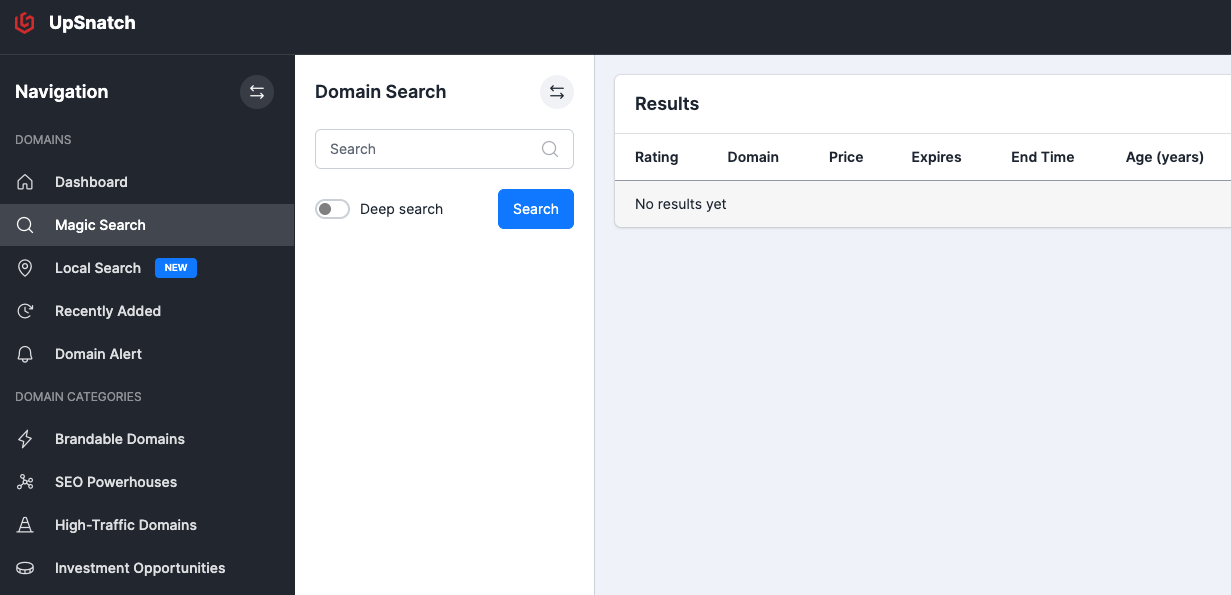
There are two ways to search for expiring domains:
Magic Search: this is the main "discovery" search
Local Search: this is where you search for domains related to a specific location or city
Let's start with Magic Search.
Run your first Magic Search
Go to Magic Search and type either:
a single keyword (e.g.,
dogs,pickleball,vegan), ora phrase (e.g.,
reptiles and amphibians,dog breeds,european cruises).
Magic Search does not only look for exact matches.
It also tries to find domains that are related to what you typed.
Instant filtering
When the search is completed, changing any of the filters is instant and takes effect immediately. You don't have to do a new search and you don't have to wait for the results to be loaded.
Deep Search
On the Magic Search screen you can see a Deep Search toggle:
Default: Much faster. This is great for most searches and covers 90% of the use cases
Deep search: Slower, but it "digs deeper" to discover more related results
In most cases, deep search will mostly add extra results that are significantly less relevant to your query. That's simply because, at any given time, there are only so many expiring domains that closely match a specific term. Going deeper usually means pulling in weaker associations. However, if you have a very broad search term, it can be worth it to try it out.
How to query
Magic Search returns domains that are related to your query, not just exact matches.
You'll get the best results by experimenting: start broad, then steer the query until it matches your intent.
| Example query | What you get | When to use | |
|---|---|---|---|
| Broad topic | dogs | A wide mix: dog care, food, toys, adoption, etc. | Exploring broad, or when your niche doesn't have many expiring domains |
| Directed topic | dog breeds | Domains like smallpuppies but also domains with specific dog breeds like labradors, chihuahuas | When the broad category has too many results or you want to to get instances of a category |
| Few shot prompting | chihuahua, labrador, bulldog | Results like goldenretriever, frenchbulldog, germanshepherd, etc. | Alternative for 'dog breeds', sometimes this works great to explore and discover categories when you might not know the specific names to query |
| Very specific | small dog breeds | Similar results to above. You might see fewer results for 'small dog breeds' specifically as there usually aren't many expiring domains in such a niche market at any one time. | when you're looking for something very particular and it's okay if the good results are limited, as long as they're exactly what you're after |
| Synonyms | affordable notebooks | Related wording like cheap laptops | This is always applied |
| Multilingual | dog | Domains containing equivalents like chien (French) or cane (Italian) | This is always applied. You can filter in the results by tld or other metrics. |
If the results feel too noisy, make the query more specific. If results feel too narrow, broaden the query.
What you see on the results screen
After you run a search, the results screen shows your domains in a table with filters on the left.
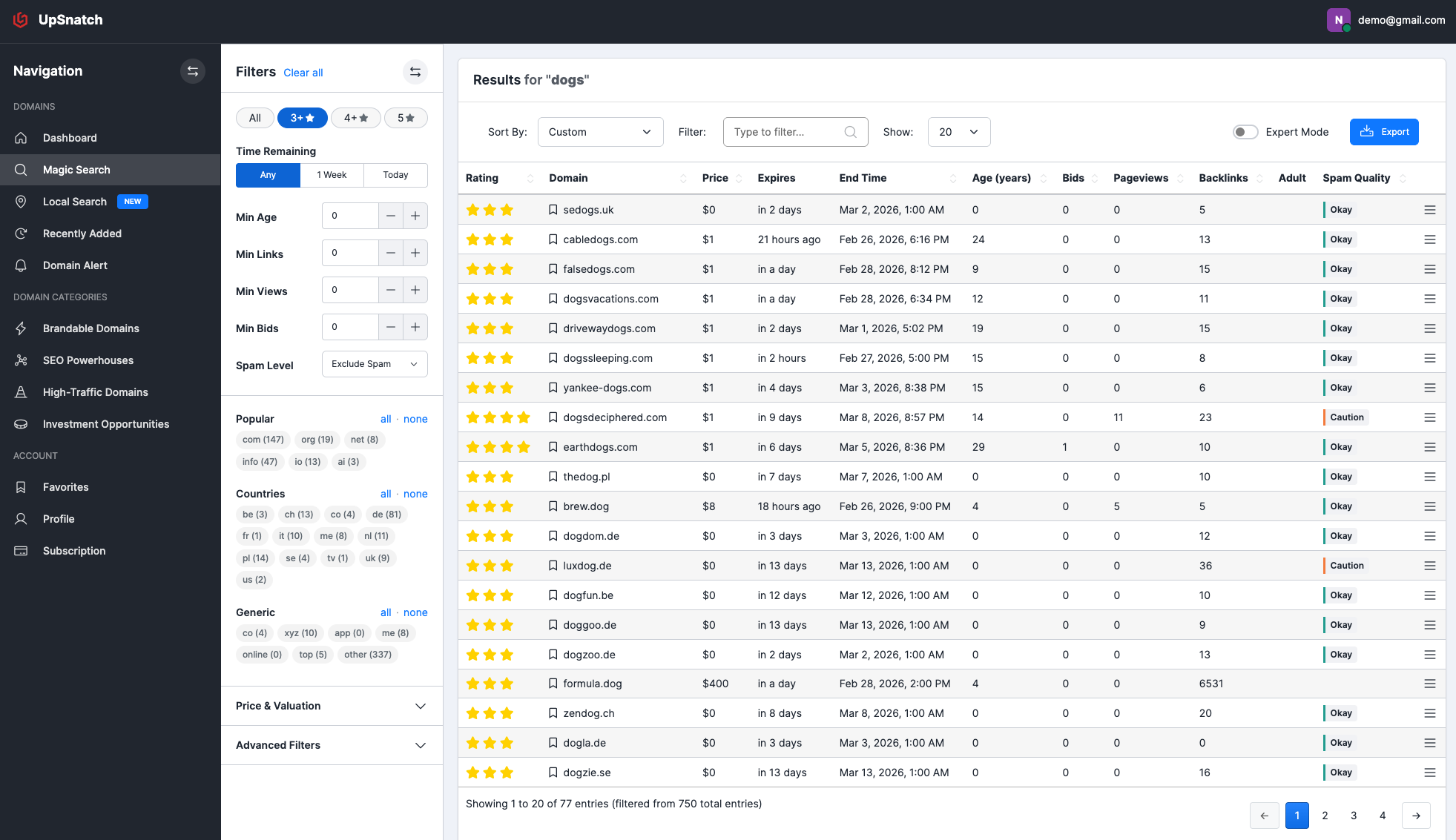
Filters (left side)
Once a search is completed, the left panel contains filters to narrow your results. Two important ones:
Star rating: a fast way to "weed out" higher-quality domains based on overall signals (e.g. shorter names, no hyphens, popular TLDs, age, backlinks). If you only care about name/brandability, keep All selected or you will miss out on many results.
Spam level: helps indicate whether a domain has a healthy backlink profile and isn't known/flagged as spam. Remark that spam score and adult filter are indicators, not guarantees, so you still need to do your own due diligence.
Results table (center/right)
The results table shows your domains and their key data. You can:
Sort by any column, e.g. sort by End Time to quickly see what auctions are ending soon.
Use the in-table filter to quickly filter by text, e.g. when you searched for
dog breeds, you can typelabradorto show only domains containing that word.
Smaller screens
On a smaller screen (e.g. when you're working on a laptop), you can minimize both sidebars using the arrow buttons to get more space for the results table. The sidebars collapse to the left when minimized.
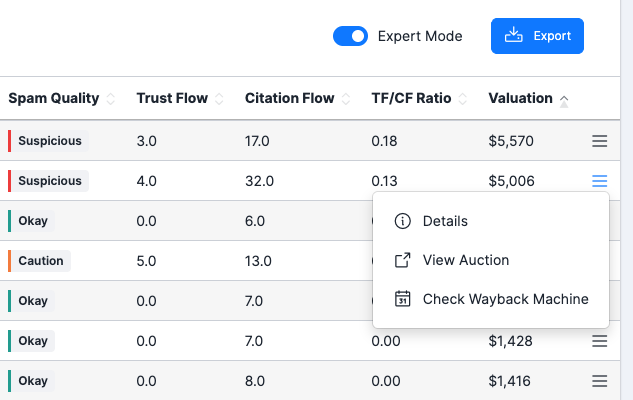
Expert Mode (top right)
You can enable Expert Mode to unlock extra columns in the Magic Search results table. When it's on, the following fields are shown in addition to the standard columns:
Trust Flow: quality score of the domains that link to this domain
Citation Flow: quantity/popularity score based on how many links point to this domain
TF/CF ratio: ratio of Trust Flow to Citation Flow, which helps spot over-optimized or spammy link profiles
Valuation: a $ estimate provided by the valuation provider.
Export
The Export button lets you download the full list of results. You get the same rows and columns as on screen. Export is available in CSV format, so you can open the file in Excel, Google Sheets, or any spreadsheet tool.
Save domains and inspect details
Save a domain (Favorites)
If you see a domain you like, click the bookmark ribbon icon. That domain will appear in your Favorites section.
Domain Details
To see more information about a domain:
Open the action menu on the right side of the domain row
Click Details
In the details view you can typically see:
expiration / auction timing info
a domain evaluation block (rating, valuation)
SEO metrics (e.g., backlinks, Trust Flow, Citation Flow, TF/CF ratio)
quality indicators (spam quality, adult content, etc.)
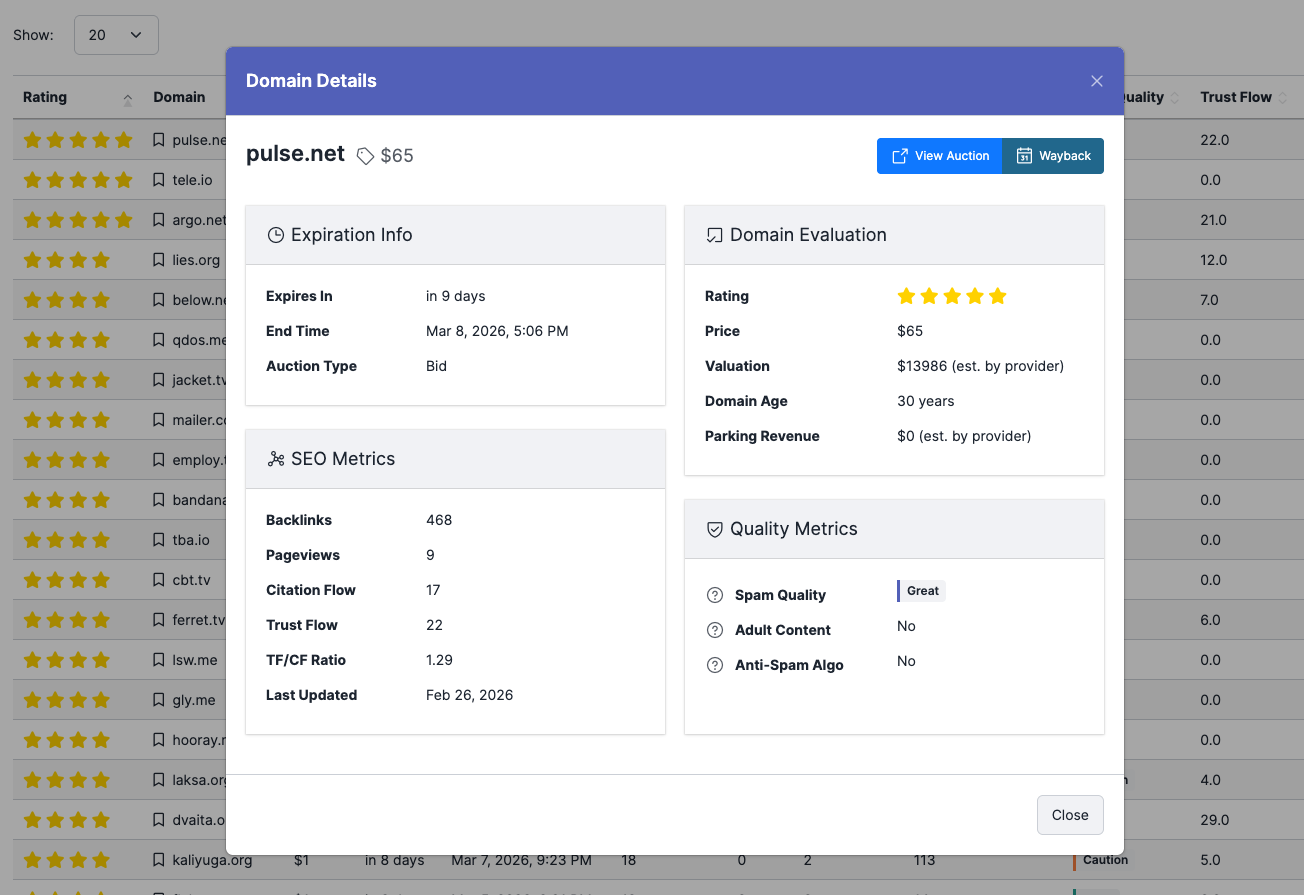
You'll also find quick actions such as:
View Auction (jump to the auction platform)
Wayback (open the Wayback Archive for fast historical checks)